Google Sheets
How to Make an Assignment Tracker in Google Sheets
To start an assignment tracker in Google Sheets, copy the template below, replace the sample assignments, and use the list to see what is due next. The formulas and colour rules are already set up.
Set it up on a laptop and use your phone for quick checks and updates. If you would rather build it yourself, the steps below the template do that from a blank sheet. By week eight, remembering which tab holds the deadlines is its own small assignment.
Every formula and screenshot here was tested in a real sheet built on 15 September 2026, with nine made-up assignments across four classes. The screenshots use 15 September 2026 as today, which is why Problem set 3, due on the 12th, shows -3. Your own Days left numbers move with the date.
Free Google Sheets assignment tracker template
Make a copy of the assignment tracker. It is the exact file from the screenshots: nine sample assignments, Days left and Week of columns, all three colour rules, a This week tab and a Dashboard tab. The copy lives in your own Drive, and nothing in it connects to StudyRows.
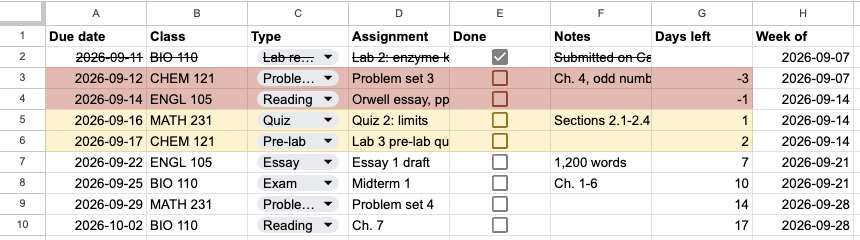
- Open the Tracker tab. Replace the sample due dates, classes, types, assignment names and notes in columns A–F, and set each Done checkbox to match your own work. The Class and Type cells are dropdowns, so put your own classes in the list first: select the column, then Data > Data validation > the rule, and edit the options.
- Keep row 1, the formulas in columns G–H and the other tabs. Clear any unused sample entries in A–D and F and untick their boxes, rather than deleting whole rows.
- Check your nearest deadline. Add anything missing, and tick Done as you finish. Make changes on the Tracker tab; the other tabs read from it.
You can stop here: that is a working assignment tracker. The rest of this page builds the same sheet from a blank one, because a tracker you understand is a tracker you can fix in week eight.
What columns does an assignment tracker need?
Start with six columns: Due date, Class, Type, Assignment, Done and Notes. A seventh, Days left, is a formula you never type into. Keep the due date in column A. Everything below points at it.
| Column | Example | Set it up as |
|---|---|---|
| A: Due date | 2026-09-16 | Date |
| B: Class | CHEM 121 | Dropdown |
| C: Type | Problem set | Dropdown |
| D: Assignment | Problem set 3 | Plain text |
| E: Done | ticked or empty | Checkbox |
| F: Notes | Ch. 4, odd numbers | Plain text |
| G: Days left | -3 | Formula |
Priority, status and grade columns are easy to add later, and there's a section on when they're worth it further down. I left them out of the first build on purpose. Every extra column is manual work on every row, and a lightweight tracker you keep updating beats a detailed one you give up on in October.
Step 1: Enter your assignments from each syllabus
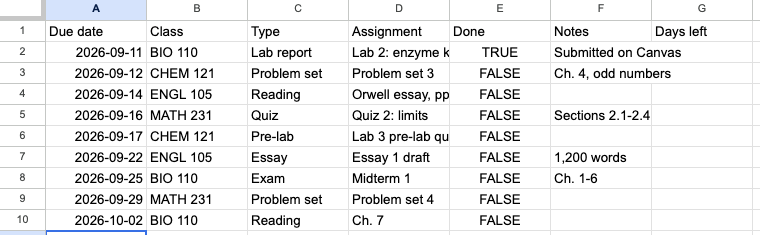
Open a blank spreadsheet at sheets.new, name the file, and type the headers into row 1. Then go through one syllabus at a time and add a row for every deliverable, from weekly readings and quizzes to labs and the big papers.
Type dates as 2026-09-16. That format can't be misread as day-first or month-first, and in my US-locale sheet it became a real date as soon as I pressed Enter. Check that yours did. With default formatting a real date sits against the right edge of its cell like a number does, and =ISNUMBER(A2) in a spare cell returns TRUE. FALSE means the date was stored as text, and none of the formulas below will see it.
Bold row 1 and pin it with View > Freeze > 1 row (Google). Double-clicking a date opens a small calendar picker (Google).
Step 2: Turn the Done column into checkboxes
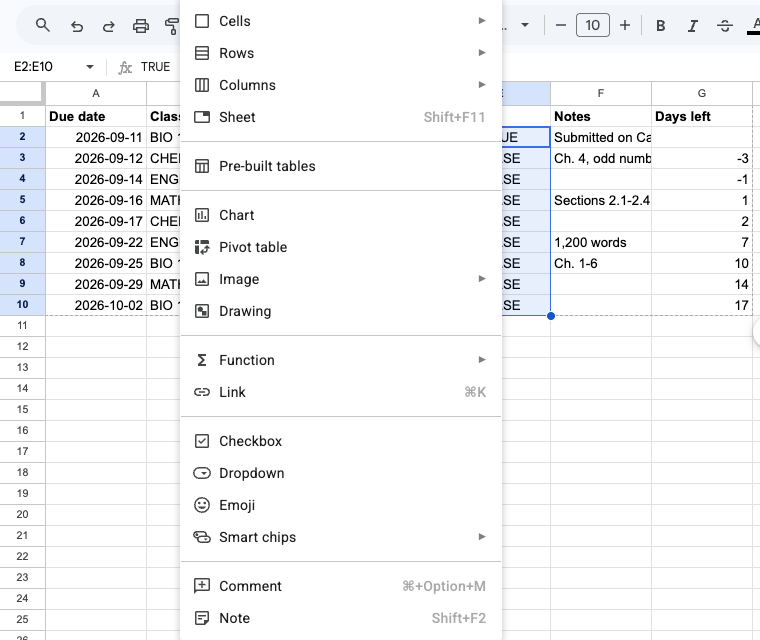
Select the Done cells and click Insert > Checkbox. I used E2:E10 for the nine sample rows. For a real semester, click the name box to the left of the formula bar, type E2:E and press Enter, which selects column E from row 2 to the bottom; then choose Insert > Checkbox, so every new row gets a box.
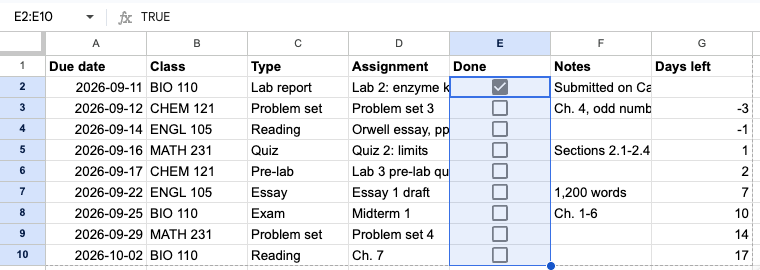
If you already typed TRUE and FALSE into those cells, Sheets keeps them: in my sheet the Lab 2 row, which said TRUE, came out ticked, and the other eight turned into empty boxes. A ticked box holds TRUE. An empty one holds FALSE. The formulas test for exactly that.
One catch trips people up. An unticked checkbox isn't a blank cell, because it contains FALSE (Google). Count assignments by their dates in column A, never by the boxes in column E.
Step 3: Add dropdowns for class and assignment type
Select the Type cells and click Insert > Dropdown. Sheets reads what's already in the range and builds the list for you. Mine picked up all seven types I'd typed (Essay, Exam, Lab report, Pre-lab, Problem set, Quiz and Reading) and sorted them alphabetically. Select C2:C rather than a fixed block if you want the dropdown on rows you haven't added yet.
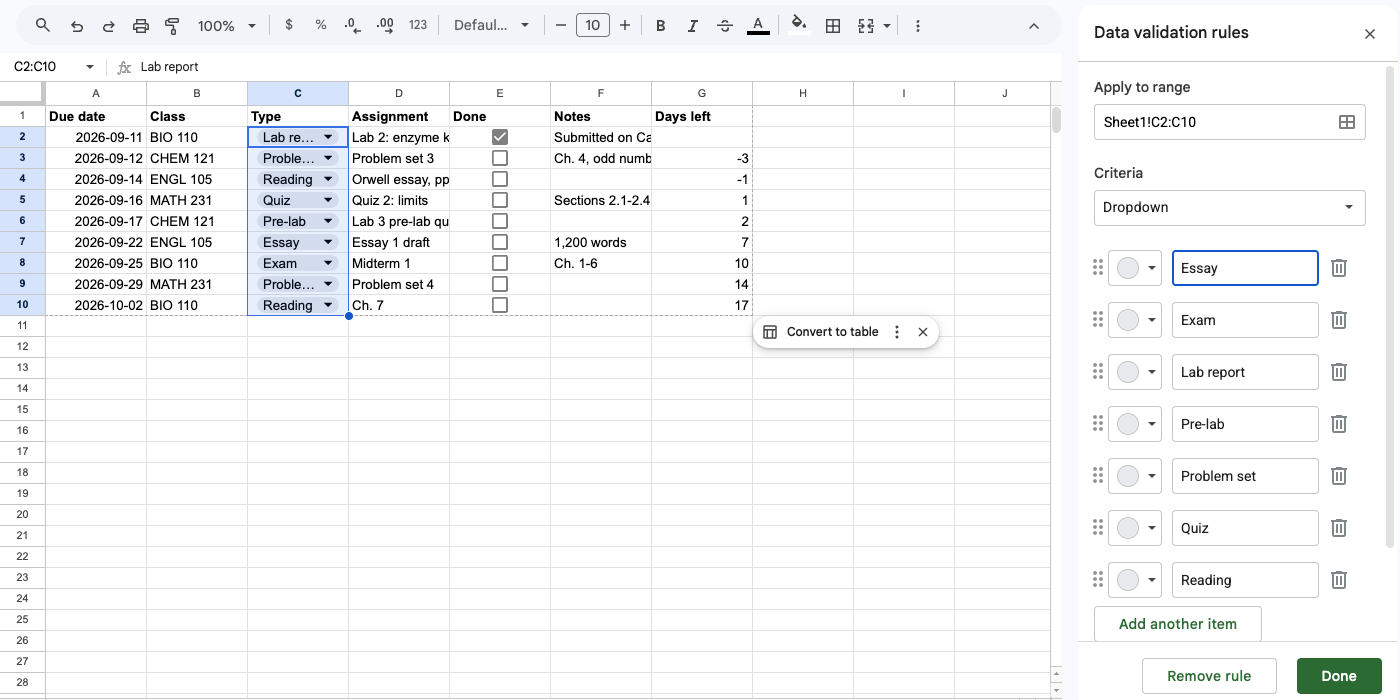
Each option has a colour circle on its left. Add types you haven't needed yet with Add another item, then click Done.
Now do column B, the class. Without a class dropdown, CHEM 121 drifts into Chem 121 and CHEM121 after a few weeks of fast typing, and those show up as three different classes the moment you filter or count. This is also where colour coding by class belongs: give each class chip its own colour and save row fills for urgency. If your class list already lives elsewhere in the file, choose Dropdown from a range (Google).
Step 4: Add a Days left column
Type this into G2, then select G2 and drag the small square at its bottom-right corner down to your last assignment row:
=IF(OR(A2="", E2=TRUE), "", A2-TODAY())It subtracts today's date from the due date. Negative means late. The cell stays blank when the row has no date or the box is ticked, so finished work stops shouting at you.
On 15 September my sheet returned -3 for Problem set 3, -1 for the Orwell reading, 1 for Quiz 2 and 17 for the BIO 110 chapter due on 2 October. Lab 2 is ticked, so its cell is empty.
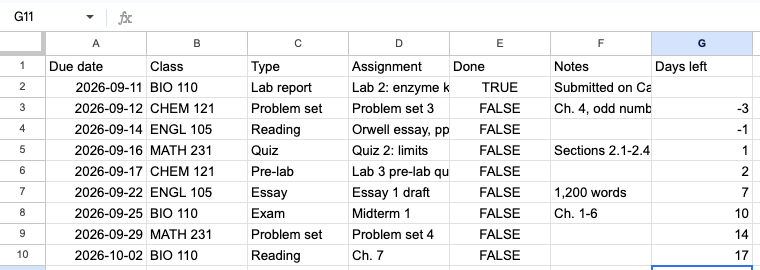
If the column shows dates instead of numbers, select it and choose Format > Number > Number.
Copying a formula down every time you add a row gets old fast. Clear the existing formulas below G2, then replace G2 with the formula below and keep the cells under it empty:
=ARRAYFORMULA(IF(A2:A="", "", IF(E2:E=TRUE, "", A2:A-TODAY())))It fills in every row that has a date, and it gave the same numbers as the copied-down version in my sheet. TODAY() follows the spreadsheet's time zone rather than your laptop's, so if the numbers look a day off, check File > Settings > General > Time zone (Google).
Step 5: Highlight overdue and due-soon work
Conditional formatting colours cells automatically from a rule. Click the name box, type A2:G and press Enter to select columns A to G from row 2 down. Then open Format > Conditional formatting, set Format cells if… to Custom formula is, and paste:
=AND($A2<>"", $A2<TODAY(), $E2=FALSE)Pick a light red fill. Click Done.
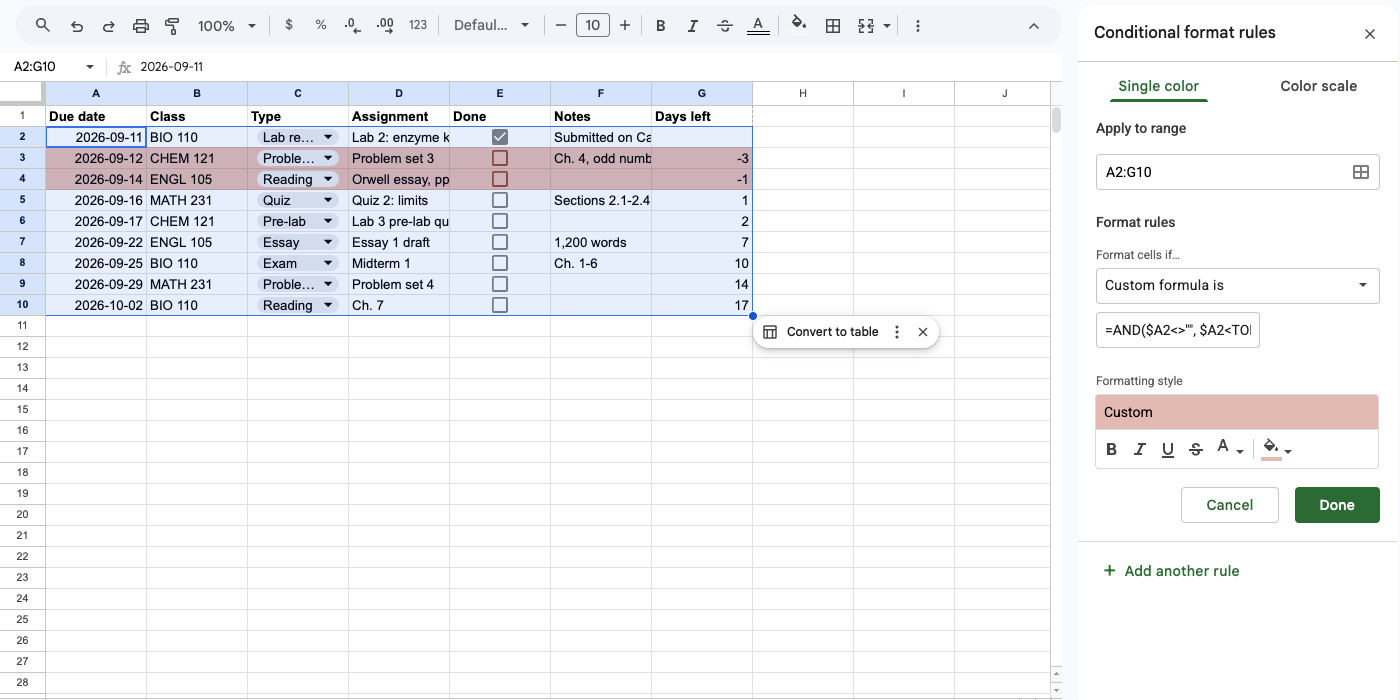
The dollar signs keep every row checking columns A and E. $A2 locks the column and leaves the row free, so each row looks at its own date and its own checkbox while the colour spreads across the whole row. The formula says row 2 because the range starts at row 2. In my sheet Problem set 3 and the Orwell reading turned red, while Lab 2, which is just as overdue but ticked, stayed white.
Add a second rule with a yellow fill for anything due soon:
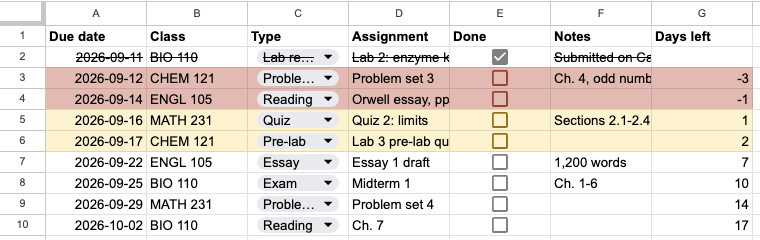
=AND($A2<>"", $E2=FALSE, $A2>=TODAY(), $A2-TODAY()<=3)That covers today plus the next three days, four dates in all. Quiz 2 (one day away) and the Lab 3 pre-lab (two days) went yellow. The essay draft, a week out, stayed plain.
A third rule, =$E2=TRUE with strikethrough and no fill, crosses out finished work. Sheets applies the first rule that matches, working down from the top (Google), but these three can't clash, since the red and yellow rules both need an empty box. The screenshots show A2:G10 because the sample has nine rows; use A2:G for a real semester.
Step 6: Sort by due date and filter by class
New assignments get added at the bottom, so the list drifts out of date order within a week or two. To sort it, select the typed columns with their headers (A1:F in this layout) and go to Data > Sort range > Advanced range sorting options. Tick Data has header row, sort by Due date, A to Z, and click Sort.
Leave the formula columns out of the selection; they recalculate from whatever row they sit on. I sorted my sample newest-first and then back again, and both times the Days left numbers, the week labels, the colours and the crossed-out Lab 2 row stayed with their assignments.
For a quick look at one class, click any header and choose Data > Create a filter. A filter icon appears in each header. The one on Class opens a list of your classes with a checkbox beside each, so you can untick everything except, say, BIO 110. Everyone who opens the sheet sees that filter, though. If you share the file, Data > Create filter view gives you a private one (Google).
You now have a usable tracker: dates, checkboxes, a countdown and colour rules. You can stop here. The remaining steps add optional views and summaries, and the dashboard can wait until the essay has a second paragraph.
Step 7 (optional): Add an upcoming assignments tab
This tab lists unfinished work due from today through seven days from now, which is eight dates including today. Rename the first tab Tracker. Add a second tab with the + button at the bottom left, call it This week, and copy the headers into row 1. Then put this in A2:
=IFNA(SORT(FILTER(Tracker!A2:G, Tracker!A2:A>=TODAY(), Tracker!A2:A<=TODAY()+7, Tracker!E2:E=FALSE), 1, TRUE), "Nothing due")It pulls every unfinished assignment due between today and seven days from now, sorted by date, and IFNA replaces the #N/A that FILTER shows when nothing matches (FILTER). In my sheet it returned three rows: Quiz 2, the Lab 3 pre-lab and the Essay 1 draft.
Two things looked wrong at first. The due dates arrived as plain numbers, 46281 instead of 16 September, because FILTER copies values without their formatting; Format > Number > Date on the new tab fixed it. The Done column also came through as the word FALSE rather than as checkboxes. That's expected. Tick things off on the Tracker tab, not here.

I ticked Quiz 2 on Tracker and it vanished from This week, then came back when I unticked it. The window is really eight dates long, today plus seven. For a strict Monday-to-Sunday week, replace the two date conditions with these:
Tracker!A2:A>=TODAY()-WEEKDAY(TODAY(),2)+1, Tracker!A2:A<TODAY()-WEEKDAY(TODAY(),2)+8In my sheet that version returned the Orwell reading (due Monday), Quiz 2 and the pre-lab, and dropped the essay draft due the following Tuesday.
Step 8 (optional): Add an assignment tracker dashboard
A dashboard is just a tab of counts, and every count comes from the Tracker tab, so nothing on it is typed by hand. If you skipped step 7, rename your assignment tab Tracker first. Add a tab called Dashboard, type four labels into A1:A4, and put these formulas beside them in B1:B4:
=COUNT(Tracker!A2:A)
=COUNTIF(Tracker!E2:E, TRUE)
=COUNTIFS(Tracker!A2:A, "<"&TODAY(), Tracker!E2:E, FALSE)
=COUNTIFS(Tracker!A2:A, ">="&TODAY(), Tracker!A2:A, "<="&(TODAY()+7), Tracker!E2:E, FALSE)
The first two give total assignments and how many are done; the last two give overdue work and what's due in the next seven days. Mine read 9, 1, 2 and 3. COUNT only counts numbers, so dates typed as text quietly drop out of the total, which makes it a decent early warning.
Below the counts, add a progress table per class. Put the headers Class, Assignments, Done and % done in row 5, and this in A6:
=SORT(UNIQUE(FILTER(Tracker!B2:B, Tracker!B2:B<>"")))It lists each class once in alphabetical order and fills the cells below by itself. Beside the first class, in B6, C6 and D6:
=COUNTIF(Tracker!B$2:B, A6)
=COUNTIFS(Tracker!B$2:B, A6, Tracker!E$2:E, TRUE)
=IFERROR(C6/B6, 0)
Copy those three down to the last class and format column D as a percentage with the % button in the toolbar. I got this wrong the first time. My counts started one row too low, so BIO 110 showed CHEM 121's numbers, and it looked plausible enough that I nearly missed it. Check each row points at its own class.
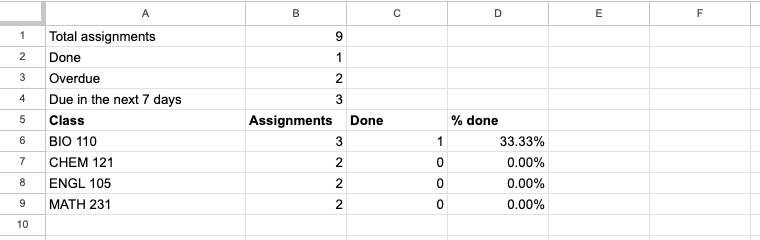
Fixed, BIO 110 showed 3 assignments with 1 done, 33.33%, and the other three classes showed 2 each with none done. When I ticked Quiz 2 on the Tracker tab, Done went to 2, due in the next seven days dropped to 2, and MATH 231 moved to 50%.
Optional: add columns to your assignment tracker
Start basic, and add a column only when a specific problem shows up. That's my advice, not a rule. Each addition below costs a little manual work on every row, so it has to save more than it costs.
| Add this | It earns its place when | How to add it |
|---|---|---|
| Priority (Low, Medium, High) | Several deadlines keep landing in the same week | Insert > Dropdown, then sort by due date with priority as a second sort column |
| Status (To do, In progress, Done) | You work on papers and projects over several days | Add it as its own column and keep the Done checkbox: the Days left formula, the colour rules, the This week tab and the dashboard counts all test E for TRUE or FALSE, so replacing the checkbox means rewriting every one of them |
| Points earned and points possible | You want grades next to the work | Two number columns and a third that divides one by the other |
| Week of column | You plan week by week | The formula in the next section |
| Dashboard tab | The list is longer than one screen | Step 8 |
Add another sort column is in the same sorting dialog from Step 6. The free StudyRows assignment tracker template is closer to the upgraded version, a twelve-column CSV with status, priority, points and time estimates. Its columns sit in different places, so change the formula letters if you start from it.
Optional: group assignments with a Week of column
A lot of Sheets trackers split the semester with banner rows: a merged, coloured row reading Week 3 above that week's work. They look tidy. The trouble is that a banner row has no due date of its own, so it can't stay above its week once you sort by date.
A formula column does the same job and survives any sort. Put this in H2 and drag it down the same way:
=IF(A2="", "", A2-WEEKDAY(A2, 2)+1)Each assignment now shows the Monday of its week. Quiz 2, due Wednesday 16 September, shows 2026-09-14, and Lab 2 from Friday the 11th shows 2026-09-07. Sheets gave the new column the same date format as column A; if yours shows a number like 46279, format column H as a date. WEEKDAY with a 2 counts Monday as day 1 (Google).
Does a Google Sheets tracker work on your phone?
Mostly. The Google Sheets app shows your colours, and you can tick boxes and pick dropdown options on both Android and iPhone. The iPhone app can't create checkboxes, edit dropdown lists or edit conditional formatting, and filter views are desktop-only on both. Build the tracker on a laptop. Update it from your phone.
| On the phone app | Android | iPhone and iPad |
|---|---|---|
| Tick checkboxes | Yes, and create them | Tick only; create on a computer |
| Dropdowns | Pick and edit lists | Pick only |
| Conditional formatting | View, create and edit | View only |
| Filter views | No | No |
Sources: Google help for checkboxes, dropdowns, conditional formatting and filter views.
Can Google Sheets remind you when something is due?
Not dependably. Some work and school Google accounts can email you when a sheet changes, but Google says a change caused by TODAY() while the file is closed will not trigger that email (Google). The sheet colours due dates while you have it open; it does not send anything. For an alert, put the deadline in your calendar and set the reminder there.
Google Sheets, Google Calendar, Notion or an assignment tracker?
A spreadsheet shows the whole semester as one list you can sort, filter or count, and you decide its structure. A calendar is better at reminders but shows a few weeks at a time. Notion is flexible but means maintaining a database. An app that syncs with Canvas or Blackboard beats all of them if every assignment actually appears there.
So if all your work lives in your learning management system, use the free tool that syncs with it. A sheet wins when assignments come from a PDF syllabus or a lab schedule no app sees. The trade-offs are in this honest comparison of assignment trackers.
When is a spreadsheet the wrong tool?
It starts costing more than it saves once you spend more time maintaining the tracker than doing the coursework in it. That tends to look like this:
| What happens | Why it gets annoying |
|---|---|
| A professor moves three deadlines | Three edits and a re-sort, and the old dates are gone unless you dig through version history |
| You want a reminder the night before | The sheet can't send one; you enter the deadline and its reminder in your calendar as well |
| A classmate shares a better template | Now there are two sheets and neither is up to date |
| You check it on an iPhone | You can tick boxes but can't fix a rule that stopped working |
You don't have to start again. Copy your rows, headers included, and paste them into the online assignment tracker on StudyRows. Dates written like 2026-09-12 or Sep 12, 2026 import exactly, and if a slash date could be read two ways, like 3/4, it shows you both dates and asks which one you meant before importing anything. Nothing connects to your Google account, and your sheet isn't changed. Every rule is on how importing works.